
Smart TV connection tips
Running into trouble getting your smart TV to connect to your 360 WiFi® network? To get your entertainment center up and running, there are several things you can check in your TV settings, Wi-Fi equipment, and network setup.
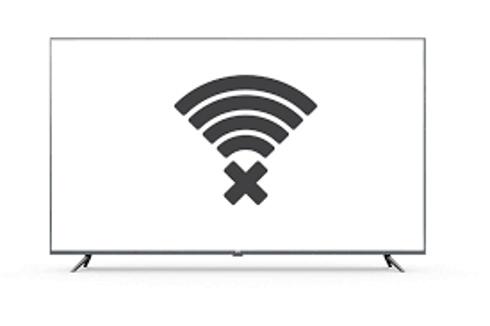
Steps to check your Wi-Fi network settings
- Double-check your Wi-Fi password. Remember, passwords are case-sensitive. Test another device using the same password to make sure.
- Restart the SmartNID and Wi-Fi pods. Refresh the equipment by unplugging from power, waiting 2 to 3 minutes, then plugging them back in. This can resolve sluggish network issues as well as connectivity issues.
- Check Wi-Fi pod placement. This might be necessary if your TV is far from the nearest pod and the signal is being blocked.
- Check your Wi-Fi network. If other devices are also not connecting, then troubleshoot your 360 WiFi setup. If you do have other devices connected to your Wi-Fi, then you know the network is working and the issue is with your TV specifically. Continue to the next section.
Steps to check your smart TV settings
- Restart your TV. Turn it off, wait a few minutes, then turn it back on.
- Check the location setting. In the TV settings, make sure the location is set correctly (zip code/country). The wrong location setting could prevent the connection to Wi-Fi.
- Update TV software. Out of date TV software or firmware can cause connectivity issues. If you can't connect the TV wirelessly, then you may need to connect your TV by Ethernet temporarily to enable updates. You may need to consult the manufacturer instructions for details. Once the software is fully updated, you can try the Wi-Fi connection again.
- Reset your TV. In some cases, an unknown setting in your TV may be the cause of the issue. Doing a full reset will delete all configurations such as sleep timers that may be affecting your Wi-Fi connection. You may need to consult the manufacturer instructions for details.
Need more help? Chat with us here, in the app, or from the account portal. If you prefer to call, that's an option.
Related topics
-
Connect a smart TV -
Troubleshoot 360 WiFi -
360 WiFi FAQs -
360 WiFi setup -
Equipment troubleshooting
Get the app


Was this information helpful?
© 2026 AT&T Intellectual Property. AT&T and globe logo are registered trademarks of AT&T Intellectual Property. All other marks are the property of their respective owners.


© 2026 AT&T Intellectual Property. AT&T and globe logo are registered trademarks of AT&T Intellectual Property. All other marks are the property of their respective owners.